Prompt basics
What Is an AI Image Prompt? A Beginner's Guide With Examples
An AI image prompt is the text you give an image generator to describe the image you want. Here is what each part of a prompt does, and five examples of the same idea applied to different kinds of image.
Published: October 6, 2026
By ImagePromptBox Team
14 min read
You type something like a dog into an AI image generator, and it gives you an image. Then you try something more specific—perhaps a realistic portrait, a fantasy scene, or a product illustration—and suddenly the result doesn't look anything like what you had in mind.
That's where the prompt matters.
An AI image prompt is simply the text you give an image generator to describe the image you want it to create. It can describe the subject, setting, lighting, style, composition, colors, and other visual details.
You don't need to learn a complicated prompt language to get started. In most cases, the best approach is to describe the important things you actually want to see.
Quick Answer
An AI image prompt is a text instruction used to guide an AI image generator.
For example:
a golden retrieveris a very simple prompt.
A more specific prompt might be:
A fluffy golden retriever sitting on an autumn forest path, warm golden-hour sunlight filtering through the trees, photorealistic pet photography, shallow depth of field.The second prompt gives the model considerably more information about the subject, setting, lighting, style, and photographic treatment.
The goal isn't to make every prompt as long as possible.
The goal is to give the AI enough useful visual information to make the image closer to what you have in mind.
What Does an AI Image Prompt Actually Do?
Think of an image prompt as a description of the image you are asking the model to create.
If you write:
a womanthe model has to make many decisions for you.
It has to decide:
- What does she look like?
- What is she wearing?
- Where is she?
- What is she doing?
- What is the lighting like?
- How is the image framed?
- Is it realistic, illustrated, cinematic, or something else?
You can leave those decisions to the model. Sometimes that's exactly what you want.
But if you have a specific image in mind, you can describe more of those decisions yourself.
For example:
A young woman with short black hair wearing a black jacket, standing on a quiet city street in natural daylight, photorealistic portrait, eye-level composition.Now the model has a much clearer idea of what you're asking for.
That's the basic idea behind prompting:
The more important visual decisions you describe, the more control you usually have over the result.
What Can You Include in an AI Image Prompt?
There isn't one required format, but beginners can think about a prompt using a few simple categories.
1. Subject
What is the main thing in the image?
a golden retrievera young womana vintage sports car2. Action or Pose
What is the subject doing?
sitting on a forest pathwalking through a busy streetparked beside a mountain road3. Setting
Where does the scene take place?
in an autumn forestin a minimalist studioon a quiet beach at sunset4. Lighting and Color
What does the light look like?
soft window lightwarm golden-hour sunlightdramatic side lighting5. Style or Medium
How should the image look?
photorealistic portraitwatercolor illustrationeditorial product photography6. Composition
How should the image be framed?
close-up portraitwide shoteye-level compositionshallow depth of fieldYou don't need every category in every prompt. A simple illustration might not need camera terminology, while a realistic portrait may benefit from it.
The point is to use the categories that actually matter for the image you're trying to create.
AI Image Prompt Examples
One of the easiest ways to understand prompting is to look at examples from different types of image generation.
The same basic principle applies across very different use cases, but the details you describe will change depending on the image.
Realistic Images and Portraits
Realistic images usually benefit from describing the subject, environment, lighting, and photographic treatment.
Example Prompt
A young man with thick wavy hair wearing a slightly unbuttoned black dress shirt, seated in a relaxed pose in a minimalist studio, soft diffused window light from the left, natural skin texture, photorealistic editorial portrait, mid-thigh framing, subtle monochrome film grain.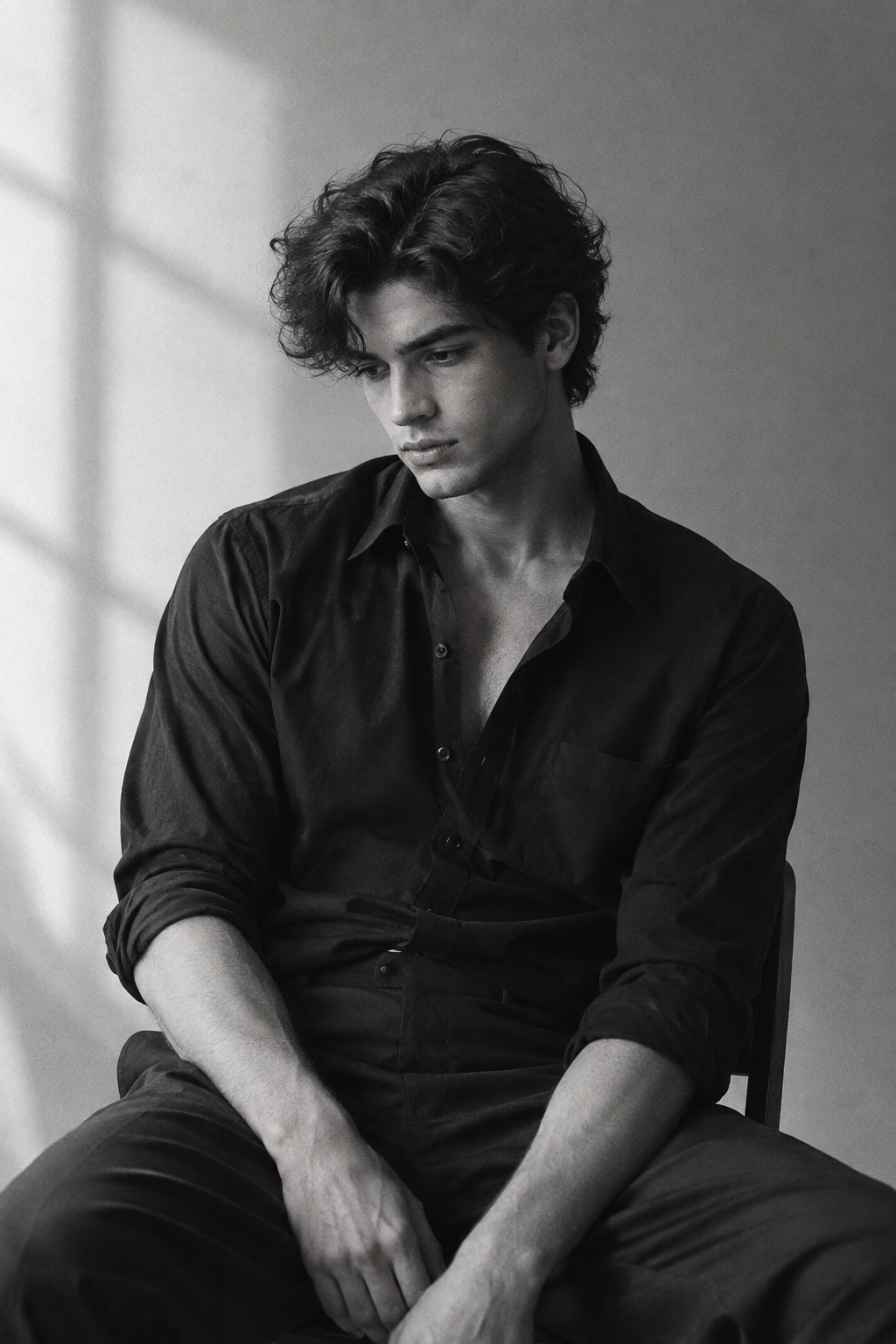
Why It Works
This prompt doesn't just say realistic portrait.
It gives the model several concrete visual decisions:
- Subject: young man with thick wavy hair
- Wardrobe: black dress shirt
- Pose: seated and relaxed
- Environment: minimalist studio
- Lighting: soft window light from the left
- Texture: natural skin texture and film grain
- Composition: mid-thigh framing
The lighting direction is particularly useful because it describes something that should be visibly different in the image.
Compare that with:
a realistic portrait of a handsome manThe second prompt leaves almost everything open to interpretation.
A useful beginner lesson
For realistic images, don't rely entirely on words like:
realistichigh quality8Kultra detailed
Those words can be used, but they don't replace describing the actual scene.
Illustration and Art
Illustrations work differently from realistic photography.
Instead of focusing heavily on lenses and photographic details, you may want to describe the medium, linework, color treatment, texture, and overall visual character.
Example Prompt
A small red fox walking through a quiet forest, watercolor illustration, soft painted textures, muted green and warm orange palette, delicate linework, hand-painted background, gentle morning atmosphere.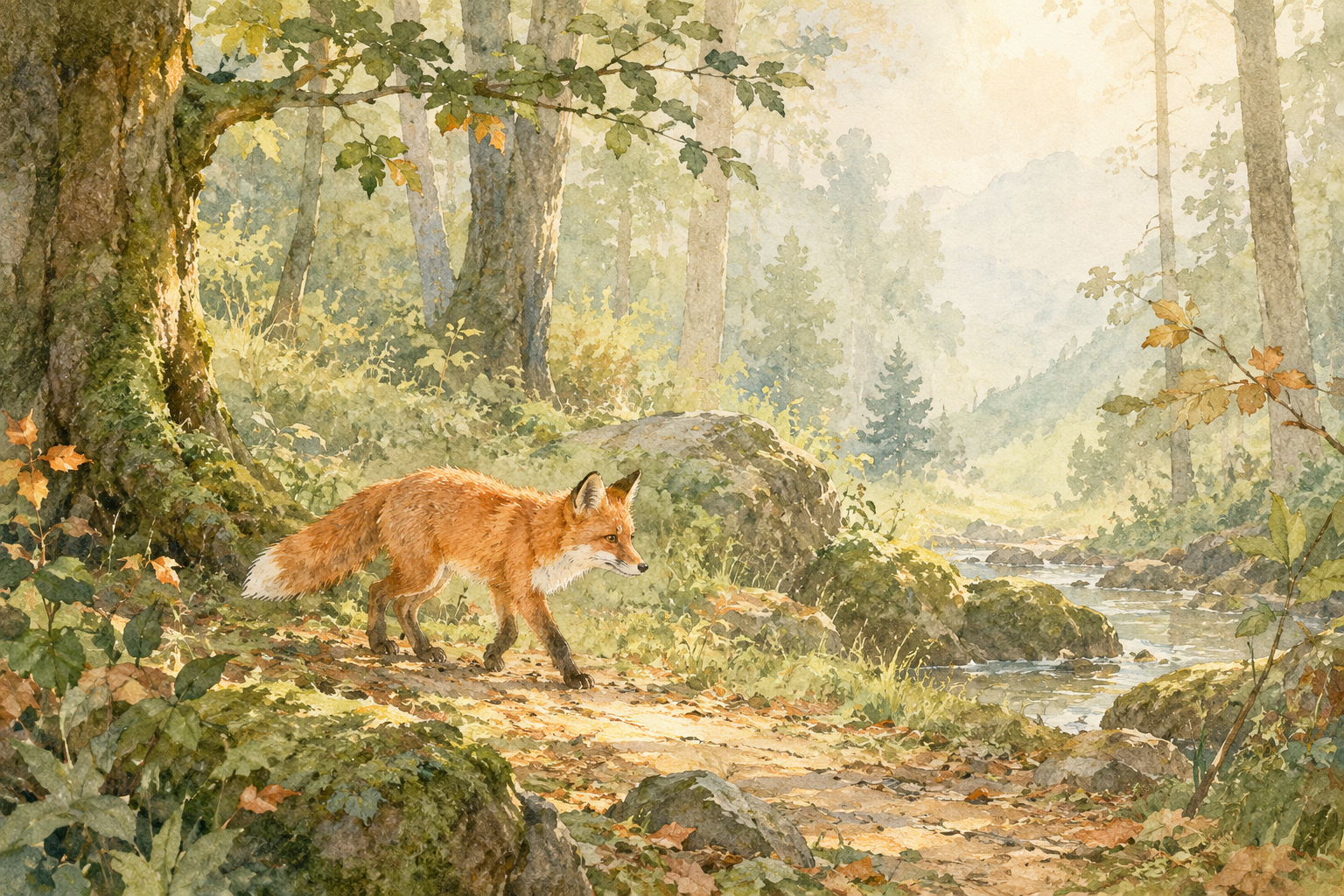
Why It Works
The prompt establishes both the subject and the visual language.
watercolor illustration tells the model what kind of medium you're aiming for.
Then the additional terms reinforce that direction:
soft painted texturesmuted green and warm orange palettedelicate lineworkhand-painted background
This is more useful than simply writing:
a beautiful artistic foxbecause beautiful doesn't tell the model what visual characteristics should make the image look artistic.
A useful beginner lesson
When creating illustrations, describe how the image should be visually constructed, not just what it should contain.
For example:
watercoloris more informative than:
beautifulbecause watercolor implies a specific visual treatment.
Branding and Design
AI image generation isn't limited to pictures.
You can also use image models to explore concepts for branding, packaging, posters, social graphics, and other design work.
For these images, layout, color palette, typography space, materials, and visual hierarchy can become more important than photographic details.
Example Prompt
Minimalist skincare product advertisement featuring a frosted glass serum bottle on a clean cream-colored pedestal, soft natural shadows, warm beige and white palette, premium editorial aesthetic, large empty space on the left for headline text, clean studio composition.
Why It Works
The prompt tells the model more than just:
luxury skincare advertisementIt describes the actual design direction.
For example:
- Product: frosted glass serum bottle
- Surface: cream-colored pedestal
- Palette: beige and white
- Lighting: soft natural shadows
- Style: premium editorial
- Layout: empty space on the left
That last detail is especially important.
If the image is intended for an advertisement, the composition has a practical purpose. Empty space can provide room for a headline, logo, or other design elements.
A useful beginner lesson
For design prompts, think beyond:
What should be in the image?
Also ask:
Where should things be placed, and what space needs to remain available?
One caveat: image generators can still struggle with accurate text and typography. A prompt can suggest where text should go, but you may get better results by adding the actual typography in a design tool afterward.
Fantasy and Surreal
Fantasy and surreal images give you much more freedom, but that doesn't mean you should describe everything randomly.
A strong prompt can still establish a clear subject, environment, lighting, and visual concept.
Example Prompt
A colossal ancient tree growing from a floating island above the clouds, glowing blue waterfalls cascading into the sky below, tiny stone ruins surrounding the roots, dramatic sunset light, atmospheric mist, epic fantasy concept art, wide cinematic composition.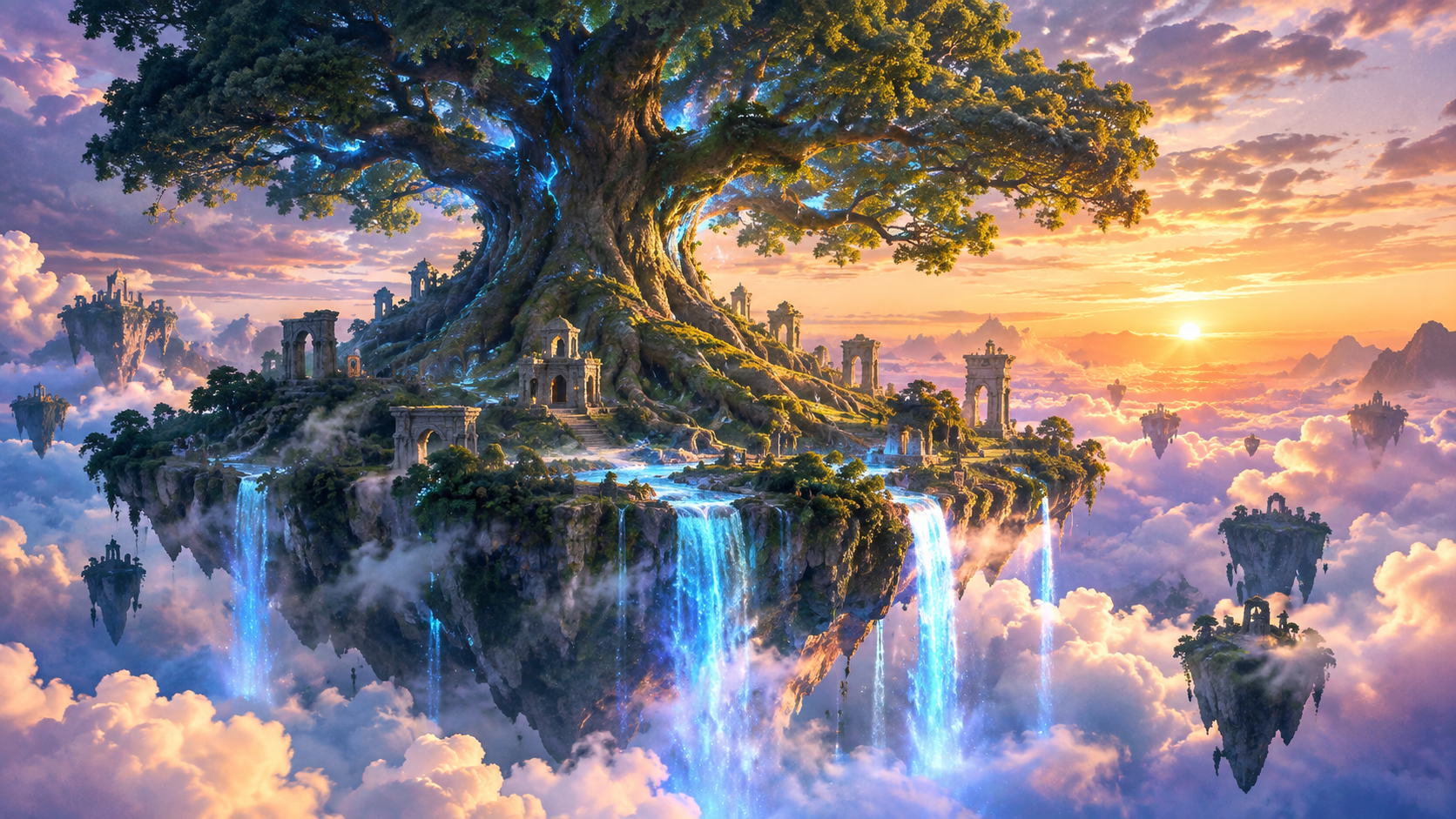
Why It Works
The prompt establishes a clear visual hierarchy.
The main subject is:
a colossal ancient treeThe unusual concept is:
growing from a floating island above the cloudsThen additional elements build the world:
glowing blue waterfallstiny stone ruinsFinally, lighting and composition establish the mood:
dramatic sunset lightatmospheric mistwide cinematic compositionThis gives the model a coherent scene rather than a collection of unrelated fantasy keywords.
A useful beginner lesson
Surreal prompting doesn't mean throwing random strange objects into one sentence.
It's usually more effective to start with one strong visual idea and then build the scene around it.
Educational and Infographic Images
AI image generators can also be useful for educational visuals, diagrams, and explanatory graphics.
These prompts require a different kind of thinking.
Instead of primarily asking:
“How should this look?”
you may need to think about:
“What information needs to be communicated?”
Example Prompt
Educational infographic explaining the water cycle, showing evaporation from the ocean, condensation forming clouds, precipitation falling as rain, and water flowing back into rivers and the sea, clean flat illustration, simple labeled sections, blue and white color palette, clear visual hierarchy, landscape layout.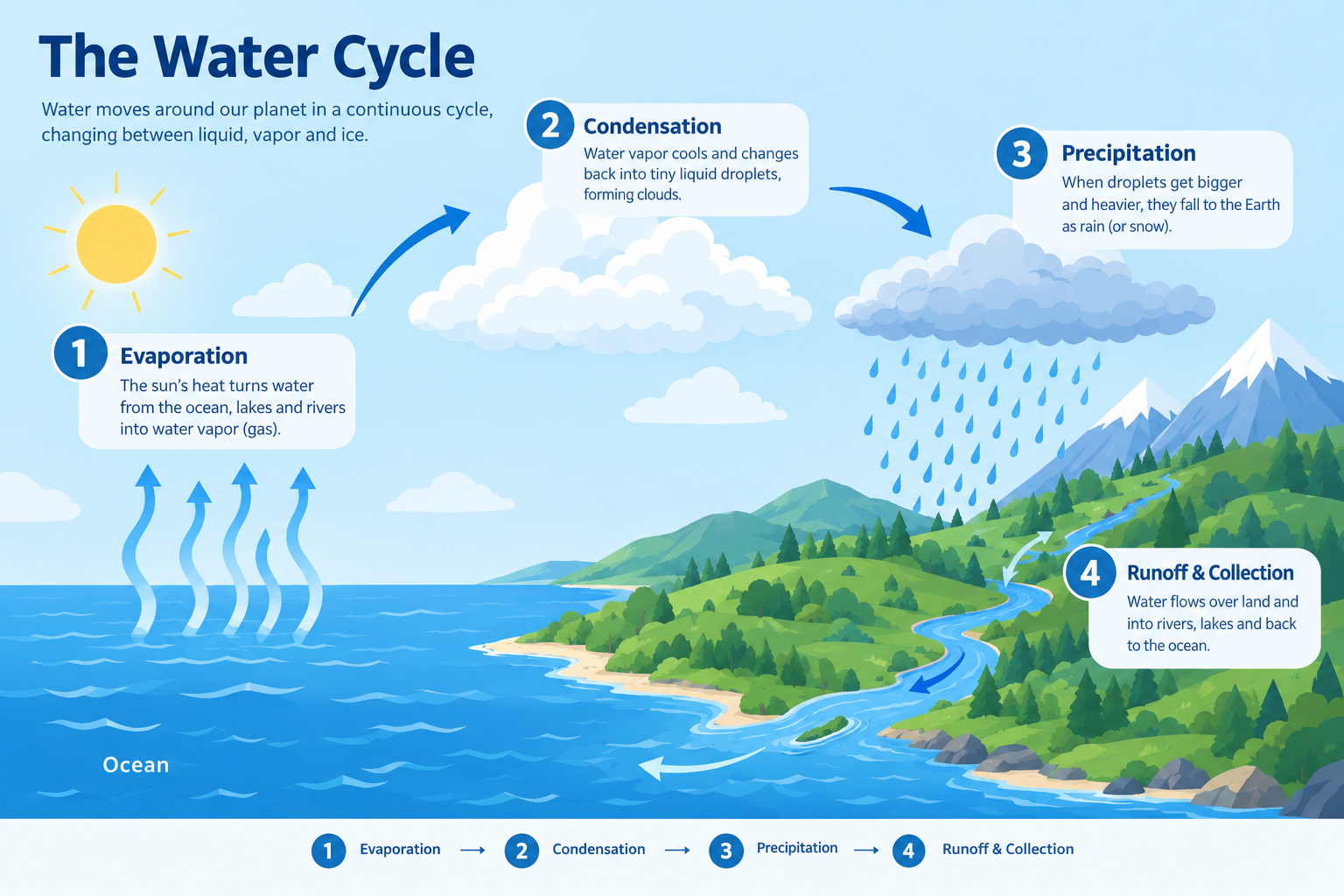
Why It Works
The prompt describes both the content and the presentation.
It tells the model:
- What concept to explain
- Which stages to include
- How the stages relate to each other
- What visual style to use
- What color palette to use
- How the information should be organized
That's much more useful than:
water cycle infographicbecause the shorter prompt leaves the actual educational structure almost entirely to the model.
A useful beginner lesson
For educational images, prioritize clarity over decoration.
If the purpose of the image is to explain something, the visual structure should support the information rather than compete with it.
Also keep in mind that AI image generators may produce incorrect labels, numbers, or other factual details. For important educational material, generated text and facts should be checked manually.
What Makes These Prompts Different?
The five examples use the same basic idea, but each type of image emphasizes different parts of the prompt.
| Image Type | Most Useful Details |
|---|---|
| Realistic images & portraits | Subject, pose, lighting, composition, photographic style |
| Illustration & art | Medium, linework, texture, color palette |
| Branding & design | Product, layout, color, negative space, visual hierarchy |
| Fantasy & surreal | Main concept, environment, atmosphere, lighting |
| Educational & infographic | Information structure, relationships, clarity, layout |
This is why there isn't a single “perfect AI image prompt.”
A prompt for a portrait doesn't need to be written the same way as a prompt for an infographic.
Do Longer Prompts Make Better Images?
Not necessarily.
This is probably one of the most common misconceptions beginners have.
Consider:
a beautiful dog, high quality, 8K, masterpiece, ultra detailedIt contains several extra words, but most of them don't tell the model much about the actual scene.
Now compare it with:
a fluffy golden retriever sitting on an autumn forest path, warm golden-hour sunlight filtering through the treesThe second prompt contains fewer generic quality claims but much more visual information.
That's the distinction I find most useful:
A longer prompt isn't automatically a better prompt. A more informative prompt gives you more control.
When you're adding a phrase, ask yourself:
What will this phrase change in the image?
If the answer is unclear, it may not be worth adding.
Common Beginner Mistakes
1. Being Too Vague
a beautiful landscapeThis gives the model almost unlimited freedom.
Try Instead
A quiet mountain lake surrounded by pine trees at sunrise, low morning mist covering the water.Now the model has concrete information about the environment, time, and atmosphere.
2. Filling the Prompt With Quality Keywords
masterpiece, 8K, ultra detailed, best quality, stunning, amazingThese don't tell the model what you actually want to see.
Try Instead
Describe the visual characteristics that matter:
fine fur texture, soft backlighting, shallow depth of fieldThe second approach gives the model something more concrete to work with.
3. Describing Objects Without Describing Their Relationships
Consider:
a woman, a bicycle, a city, sunsetThe model knows the objects, but not necessarily how they relate to one another.
A better description might be:
A woman riding a bicycle along a quiet city street at sunset, viewed from behind.Now the scene has an action, relationship, and viewpoint.
4. Changing Too Many Things at Once
If your first result is wrong, it can be tempting to rewrite the entire prompt.
But then you don't know what actually fixed the problem.
Try Instead
Change one important variable at a time.
For example:
- Fix the subject.
- Fix the environment.
- Adjust the lighting.
- Adjust the composition.
- Refine the style.
This makes prompting much more like an iterative design process.
5. Expecting the Prompt to Guarantee a Specific Result
A prompt is guidance, not a guarantee.
Different image models can interpret the same description differently. Even the same model may produce different results across generations.
That's normal.
The goal isn't to discover one magical sentence that always works.
The goal is to learn which parts of your description actually influence the result you want.
A Simple AI Image Prompt Template for Beginners
If you're not sure where to start, use this:
[Subject] + [Action/Pose] + [Setting] + [Lighting] + [Style] + [Composition]
For example:
A fluffy golden retriever sitting on an autumn forest path, warm golden-hour sunlight filtering through the trees, photorealistic pet photography, shallow depth of field.You don't need to fill every section.
For a simple illustration, you might only need:
A small fox walking through a forest, watercolor illustration, soft warm colors.For a product image:
A minimalist perfume bottle on a white stone pedestal, soft studio lighting, luxury product photography.Start simple, then add the details that matter.
How to Improve a Prompt Step by Step
You don't have to write the perfect prompt before generating your first image.
In fact, I usually think it's better to treat prompting as an iteration:
Step 1: Start With the Main Subject
a golden retrieverStep 2: Add the Important Action or Pose
a golden retriever sittingStep 3: Add the Environment
a golden retriever sitting on an autumn forest pathStep 4: Add Lighting or Mood
a golden retriever sitting on an autumn forest path, warm golden-hour sunlightStep 5: Add Style or Composition if Needed
a golden retriever sitting on an autumn forest path, warm golden-hour sunlight, photorealistic pet photography, shallow depth of fieldThen look at the result.
If the environment is wrong, change the environment.
If the lighting is wrong, change the lighting.
If the composition is wrong, adjust the composition.
This is much easier than trying to predict every possible problem before generating anything.
The Most Important Thing to Remember
An AI image prompt isn't a secret code.
It's a way of communicating a visual idea to an image model.
You can start with:
a dogand gradually turn that into a much more specific description:
A fluffy golden retriever sitting on an autumn forest path, warm golden-hour sunlight filtering through the trees, photorealistic pet photography, shallow depth of field.The important improvement isn't simply that the second prompt has more words.
It's that it answers more visual questions.
What is it?
What is it doing?
Where is it?
What does the light look like?
What style should it have?
How should the image be framed?
Once you start thinking about prompts this way, writing them becomes much less mysterious.
You don't need to memorize hundreds of keywords.
Start by describing the image you actually want to see, one important visual decision at a time.
Frequently Asked Questions
Is an AI image prompt the same as a prompt I would write for ChatGPT?
They're the same basic idea — text instructions — aimed at different outputs.
A text prompt asks for an answer, a summary, or a piece of writing. An image prompt describes a picture.
That difference changes how you write. An image prompt is mostly nouns and visual descriptions rather than a question or a request.
If you can picture what you're describing, you can write it.
Do I need to learn special keywords or syntax?
No.
Every example on this page is a plain description in ordinary language. There is no required vocabulary to memorize.
Some generators offer extra syntax — weighted words, parameters, or a separate field for things you want to exclude — and that can give you finer control. It's optional, and it's worth checking your tool's own documentation rather than assuming a syntax carries over from somewhere else.
Start with sentences. Reach for syntax when plain description isn't getting you there.
Why does the same prompt give me a different image every time?
Because an image generator doesn't replay a stored picture. It builds a new one from your description each time it runs.
Some tools let you fix the starting point — often called a seed — which makes a result more repeatable. If yours offers that, it's the setting to look for when you want a consistent image.
Without it, expect one prompt to give you a family of related images rather than a single repeatable one.
What is a negative prompt, and do I need one?
A negative prompt is a separate field, available in some tools, for listing what you don't want in the image.
If your tool has one, that's where those exclusions belong.
If it doesn't, you can still work without one, because the description of what you do want is what the model builds the image from either way.
How do I know when a prompt is finished?
When it answers the visual questions you actually care about.
Go back through the six from the end of this article: what is it, what is it doing, where is it, what does the light look like, what style should it have, and how should it be framed.
If you can read your prompt and picture the result, you've probably covered enough.
If one of those answers still feels open, that's the part you're leaving to the model — which is sometimes exactly what you want.